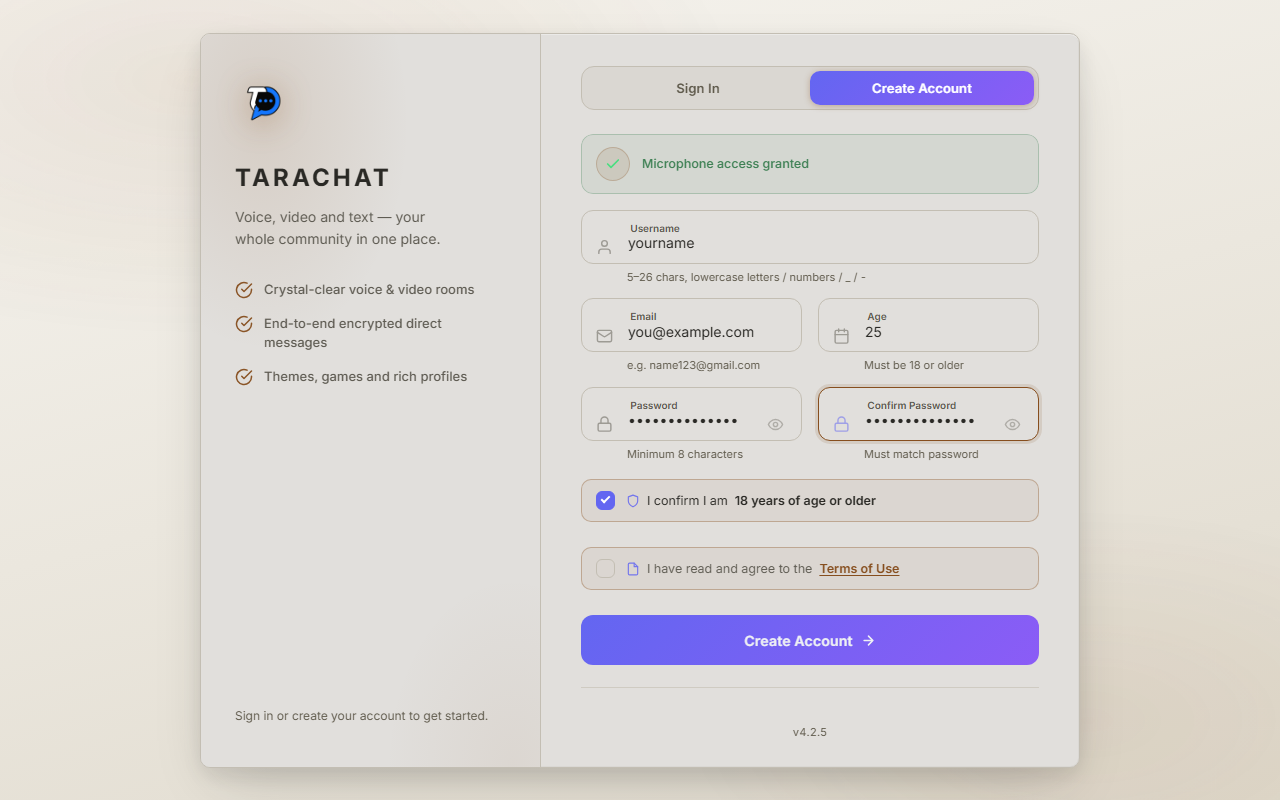
Go to the TaraChat sign-in page and click Create Account at the top. Fill in four things:
- Username: the name people will see. 5 to 26 letters or numbers, lowercase only. TaraChat tells you right away if it's taken.
- Email: only used if you ever need to reset your password. No one else sees it.
- Age: you must be 18 or older to use TaraChat.
- Password: at least 8 characters. You'll type it twice to make sure it matches.
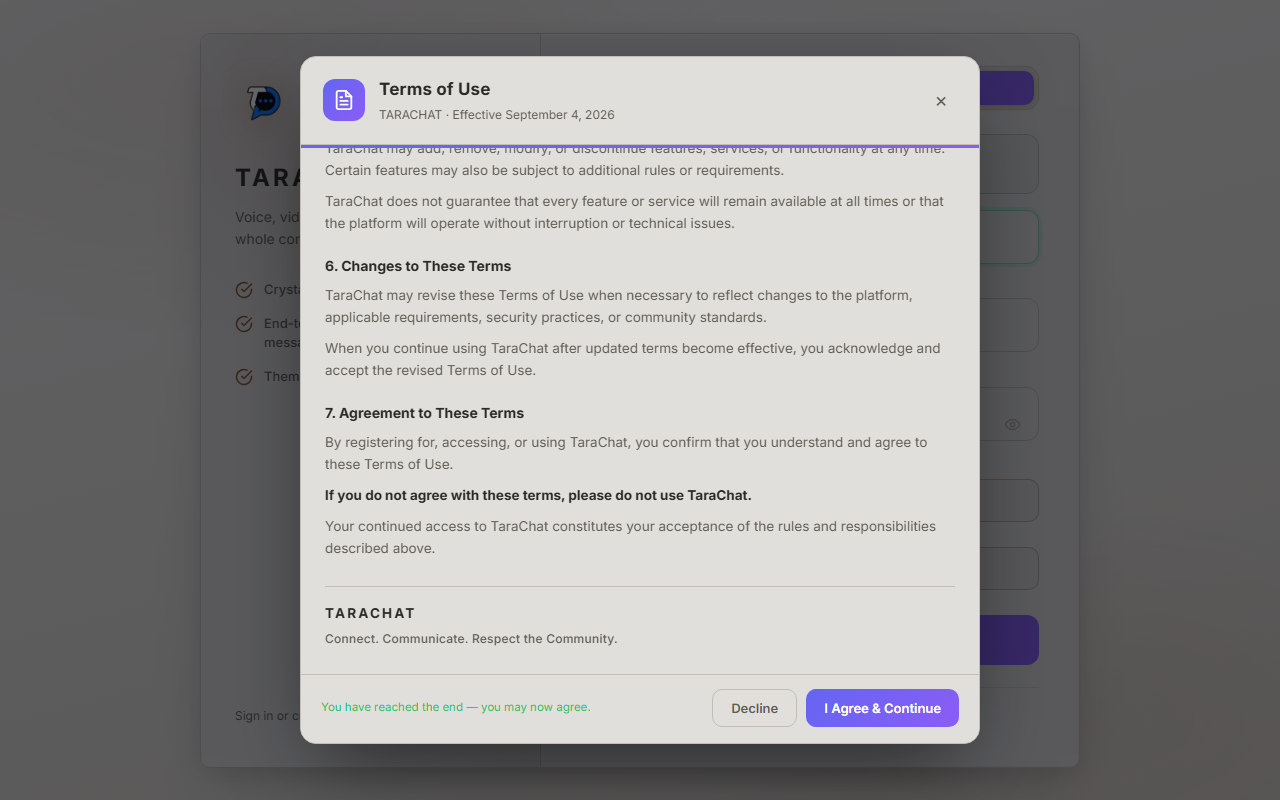
Then tick "I confirm I am 18 years of age or older", and read the Terms of Use. You have to scroll all the way to the bottom of that pop-up before you're allowed to agree to it. That's normal, not a bug.
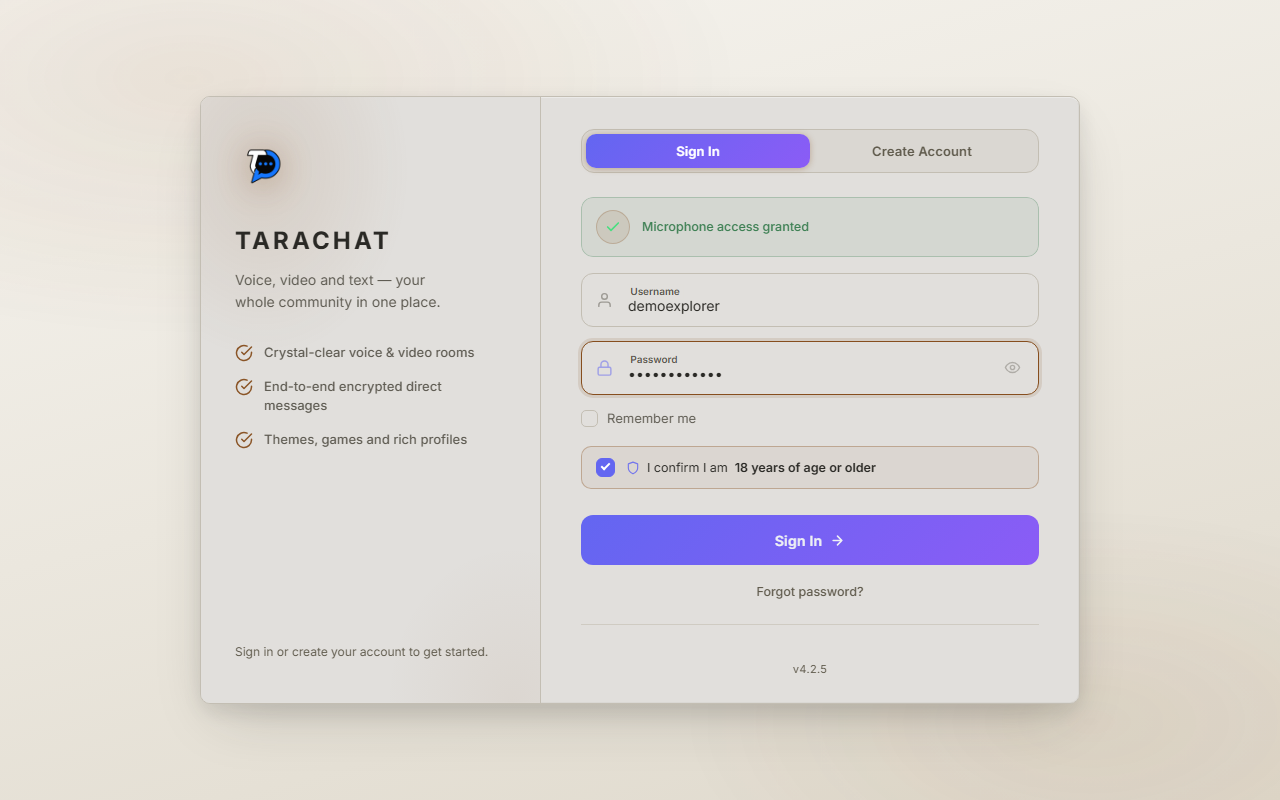
Type your username and password, tick the 18+ box again, and click Sign In.
A couple of things that might come up:
- If you turned on Two-Factor Authentication (an extra security code), you'll be asked for a 6-digit code after your password.
- Forgot your password? Click "Forgot password?" under the Sign In button to get a reset link by email, or use a Recovery Code if you saved one earlier.
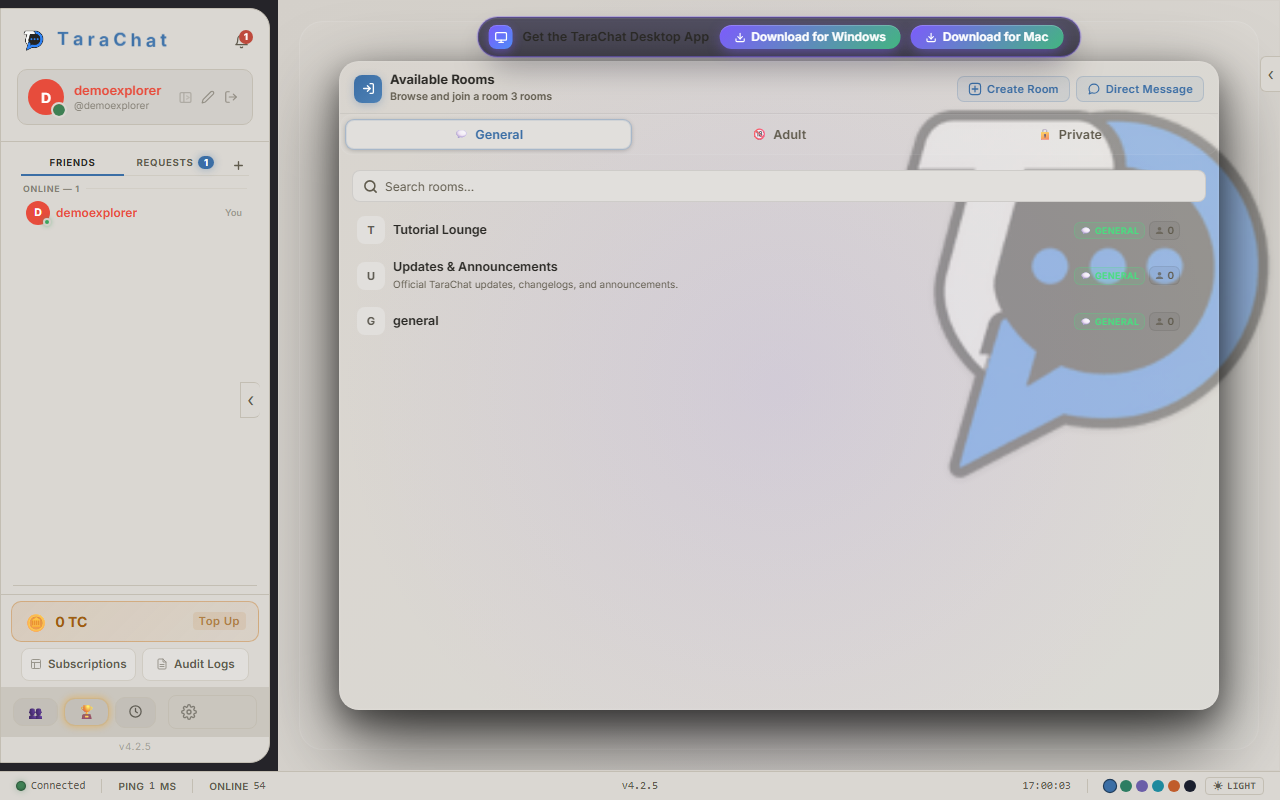
A "room" is where a group of people chat, talk on the mic, sing, and play games together. Your home screen lists the rooms you can join, split into tabs:
| Tab | What's in it |
|---|---|
| Active Rooms | Rooms where someone is on the mic or chatting right now. The best place to find a lively room. |
| General | Every public room. This is the tab you see first. |
| Private | Invite-only rooms. You need the room's invite code from someone already inside. |
| 18+ | Adult-only rooms. The first time you open this tab you'll be shown the 18+ rules and must accept them. 18+ rooms are only listed here, never under General or Active. |
To open a room: click it (double-click on the desktop app). You can also right-click a room and choose Join Room. On a phone, press and hold the room instead.
Use the search box to find a room by name. Rooms with a small G badge are General, and rooms with 18 are 18+.
Click Create Room, then fill in:
- A name for the room.
- A category:
- General: anyone can find and join it.
- Private: invite-only and hidden from the room list.
- 18+: listed only under the 18+ tab. You'll be asked to accept the 18+ rules first: no nudity or sexual content, and breaking that means an immediate ban.
- Optionally, a time after which the room deletes itself.
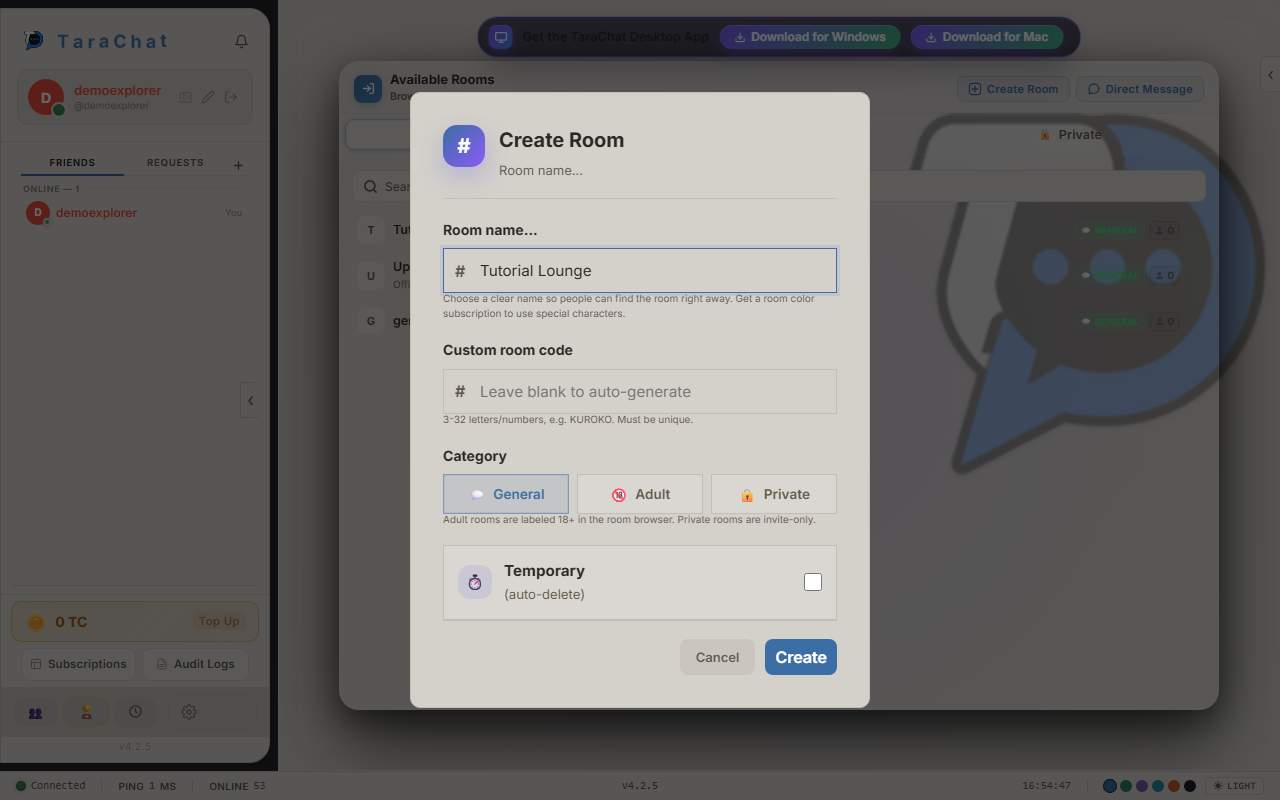
You become the room's 👑 Kapitan (owner). You can change the room's category later; see Room Options.
When you open a room, it appears in the Stage design. The person talking is shown in a card at the top, your room tools sit on a rail down the left side, and the chat fills the middle. Here's what each part is called. The red numbers match the steps below, so click any of them to learn more.
- 1Title bar: room name, owner, head-count and window buttons.
- 2Topic strip: the room's pinned topic, with More / Less.
- 3Left rail: camera, screen share, karaoke, music, games, Room Options, Invite, Services.
- 4On-Mic card: who's talking, their gift button, the sound meter and your volume.
- 5Mic buttons: LOCK, SNATCH, RAISE, voice settings and Refresh Voice.
- 6Message box: emoji, formatting, attach a file, send.
- 7People panel: everyone in the room, live screens and Find someone.
- 8Menu & help: the full room menu and keyboard shortcuts.
The title bar is the thin strip at the very top of the room. Reading left to right:
- Room type badge: G for General, 18 for 18+, or P for Private.
- # Room name.
- Info chips: 👑 the owner's name, 👥 how many people are in the room, 📷 how many cameras are on, and ✋ how many hands are raised.
On the right are the window buttons:
| Button | What it does |
|---|---|
| Default / Compact | Switches the room window between its normal size and a smaller, tighter layout. |
| ☆ Favorite | Adds the room to your favorites so it's easy to find again. |
| ⧉ Pop Out | Opens the room in its own browser window. |
| ⛶ Full Screen | Fills your whole screen with the room. |
| ▢ Maximize | Makes the room window as big as the page. |
| — Minimize | Shrinks the room to a small bar. You stay in the room and keep hearing it. |
| ✕ Close | Leaves the room. |
In a narrow window these buttons show as icons only. Hover over any of them to see its name.
The topic strip
Under the title bar is the room's topic: a short note from the room's moderators, such as the rules or tonight's event. Long topics show one line with a More ▾ button. Click it to read the whole topic, and Less (or anywhere outside the topic) to fold it again. Owners and moderators change the topic from the menu: Rooms → Set Room Topic.
The rail is the column of icon buttons down the left side of the room. At the top is the room's picture (or a speaker icon if the room has none). Each button has its own colour, and lights up in that colour when you hover over it or when it's turned on.
| Button | What it does |
|---|---|
| 📷 Camera | Turns your webcam on or off. See Step 14. |
| 🖥️ Share Screen | Shows your screen to the room. See Step 14. |
| 🎤 Karaoke | Search YouTube for a song and play it for the room to sing along to. |
| 🎵 Music | Search and play music tracks for the room, with a queue. |
| 🎶 NTT | Name That Tune: a game where everyone guesses the song to win points. |
| 🧠 Trivia | Starts the Trivia Bot: answer questions in chat to win points. |
| 👑 Room Options | Room management for owners and moderators. See Step 21. |
| ➕ Invite | Invite your online friends into this room. |
| ✨ Services | Spend TC Coins on name colours, crowns, badges and room colours. See Step 29. |
| ☰ Menu | Opens the full room menu. See Step 10. |
| ? Help | Shows the keyboard shortcuts and chat commands. |
A button that's greyed out means the room's owner has switched that feature off for this room.
The card above the messages is the room's "stage". It shows whoever is talking right now, the mic holder:
- Their picture and name, with any badges they've earned or bought. A ring around the picture lights up while they're talking.
- 🎁 Gift: send the speaker a gift using your TC Coins. It's a nice way to say thanks for a song.
- The sound meter: the bar moves with the speaker's voice, so you can see they're coming through even when the room is quiet.
- 🔊 Volume: click it and a slider pops up. Drag it to set how loud this room is for you only. TaraChat remembers your volume for next time.
- 🔇 Mute speaker: silences the current speaker on your side only. Nobody else is affected.
If the mic is free, the card says "Lock on Mic to use Voice". Guests invited onto the mic during a podcast (Step 13) are listed in the card too.
Under the speaker are the mic buttons: LOCK, SNATCH, RAISE, ⚙️ Voice Settings and ↻ Refresh Voice. Step 12 explains each one.
The panel on the right lists everyone in the room. At the top:
- 🖥️ View NAME's screen: appears when someone is sharing their screen. Click it to watch. When several people are sharing, it reads Live Screens and lets you pick whose screen to watch.
- 🔍 Find someone: type part of a name to filter the list. Press Esc to clear it.
Small icons next to a name tell you what that person is doing:
Right-click a name (press and hold on a phone) for more:
- View Profile, Direct Message, or Whisper (a message inside the room that only they can see).
- Add Friend, Ignore User (hide their messages from you), or Block User.
- View Camera, if their camera is on.
- 🎤 Invite to mic, if you're the speaker and podcasting is allowed. See Step 13.
- 🚩 Report User, if someone is breaking the rules.
Moderators see extra options here, such as removing someone from the mic or from the room.
Click ☰ at the bottom of the rail to open the room menu. It has five sections:
| Menu | What's inside |
|---|---|
| File | Minimize or Close the room. |
| View | Toggle Sidebar (hide or show the People panel), Toggle Voice Panel, Show Timestamps, Show Join/Leave Messages, Show Trivia Messages (turn off to ignore Trivia Bot posts in that room), and Scroll to Bottom. |
| Rooms | Refresh Voice (reconnects your sound), Set Room Topic (moderators), and Set as Default Settings, which saves your current text style (font, size, colour) as your default in every room. |
| Tools | 📷 Camera, 🖥️ Share Screen, and while sharing, 🔄 Change Source (pick a different window) and ✂️ Change Area (share only part of the screen). Owners also get 🎉 Greeter, a welcome message shown to people when they join. |
| Help | Keyboard Shortcuts, About Rooms, 🏷️ Report Room, and 🚩 Report Issue (tell us about a bug). |
Click anywhere outside the menu to close it. The ? button under ☰ jumps straight to the keyboard shortcuts (listed in Step 32).
You don't have to do anything to listen. As soon as you open a room, you hear whoever is on the mic, as long as the room has voice turned on.
- Use 🔊 Volume on the On-Mic card to make the room louder or quieter for you. The level is remembered, and rooms you haven't set yet start at your last-used volume.
- Use 🔇 on the card to silence the current speaker for you only.
- Minimizing the room keeps the sound playing. Closing the room stops it.
In a TaraChat room, one person talks at a time, like a walkie-talkie. Whoever is talking is the mic holder. The mic buttons under the On-Mic card are how you take a turn.
| Button | What it does |
|---|---|
| 🎙️ LOCK | Takes the mic straight away when it's free. Your browser will ask for microphone permission the first time; click Allow. |
| ✋ RAISE | Raises your hand to say "I'd like a turn". A ✋ shows next to your name and in the title bar count, so the speaker and moderators can see you're waiting. Click ✋ LOWER to put it down. |
| ⚡ SNATCH | Puts you in line to grab the mic automatically. See below. |
| ⚙️ | Voice Settings: pick your microphone, speaker and camera, camera quality (480p / 720p), and whether to optimize for Voice (recommended) or Music (better for karaoke). |
| ↻ | Refresh Voice: reconnects your sound if it breaks or gets stuck. |
The buttons change to show what's happening
| You see | It means |
|---|---|
| MIC USED | Someone else has the mic. Wait for them to finish, raise your hand, or use SNATCH. |
| Release Mic | You have the mic. This button is filled in the room colour. Click it to give the mic back when you're done. (On the desktop app, LOCK reads RELEASE instead.) |
| 🎤 HAS MIC | Shown on RAISE while you're talking. You can't raise your hand while you hold the mic. |
| 🎙️ SNATCHING | SNATCH is on. LOCK is paused until you turn SNATCH off. |
How SNATCH works
- If the mic is free: everyone who pressed SNATCH within about one second goes into a fair draw, and one of them gets the mic. Being closer to the server doesn't give anyone an edge.
- If someone took the mic with LOCK: once a person presses SNATCH, the speaker gets about 30 more seconds, then one of the people snatching takes over.
- If someone won the mic with SNATCH: they're protected for 30 seconds before anyone can snatch it from them.
- SNATCH stays on until you press it again to turn it off. If your hand is raised too, turn SNATCH off before you can lower it.
Podcasting lets the mic holder bring other people onto the mic, so several of you can talk or sing together. It's great for duets, interviews and group shows.
- Take the mic with LOCK or SNATCH.
- In the People panel, right-click someone who is in the room's voice and choose 🎤 Invite to mic.
- They get a pop-up to accept or decline. If they accept, they join you on the mic and show up in the On-Mic card with 🎤 next to their name.
- Guests can leave the mic whenever they like.
- As the host, right-click a guest and choose 🎤 Remove from mic to end their turn.
- Guests can receive gifts while they're on the mic with you.
- You can invite 2 guests by default. Some account tiers can invite more.
To turn your camera on: click 📷 on the rail. Your browser asks for camera permission the first time. The 📷 count in the title bar goes up, and a 📷 appears next to your name so people know they can watch.
To watch someone's camera: right-click their name in the People panel and choose View Camera.
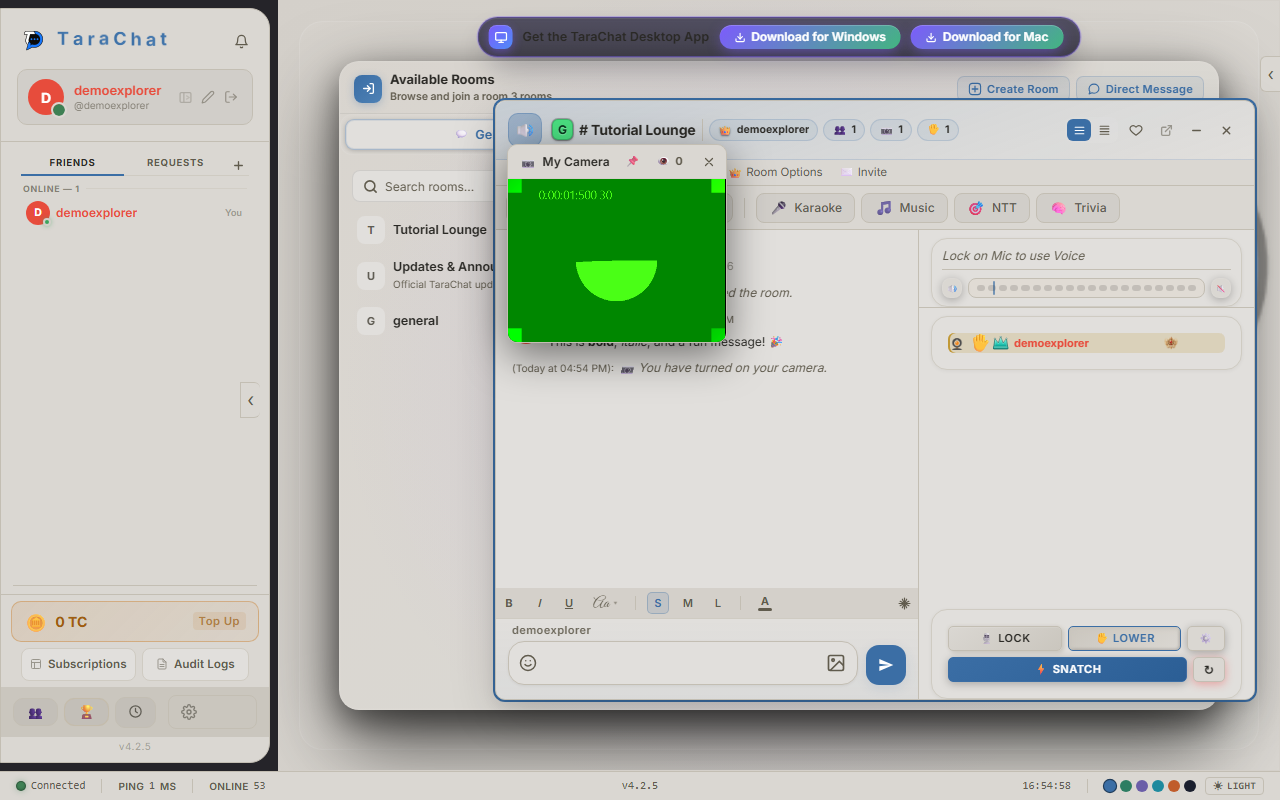
Camera windows can be dragged anywhere, made bigger with the fullscreen button, or pinned to stay on top of other windows.
To share your screen: click 🖥️ on the rail and pick a screen, window or browser tab. While you're sharing, the menu's Tools section lets you Change Source (switch to another window) or Change Area (share only part of your screen). Click 🖥️ again to stop.
To watch a shared screen: click View NAME's screen (or Live Screens) at the top of the People panel.
🎤 Karaoke
Click the karaoke button on the rail, search for a song, and play it. Everyone in the room hears the track so you can sing along on the mic.
🎵 Music
Click the music button to search for tracks and add them to the room's queue. A music bar appears above the message box showing what's playing and what's next, with buttons to:
- ⏭ skip to the next track,
- mute the music for you only,
- view the queue,
- ✕ stop the music.
🎶 Name That Tune (NTT)
A music quiz. A clip of a song plays and everyone races to type its name in the chat. The fastest correct answers win points.
🧠 Trivia
The Trivia Bot posts questions in the chat. Type your answer as a normal message; the first right answer wins points. Questions sometimes come with a hint.
Click the message box at the bottom of the room, type, and press Enter (or click ➤) to send. Press Shift + Enter for a new line.
The message box has these buttons:
- 😀 Emoji: opens the emoji picker.
- T Formatting: shows or hides the style buttons above the box.
- 📎 Attach: share a picture, video, audio file, PDF, ZIP or text file. You can also drag a file straight onto the box.
Click T and the style row appears next to your name:
| Button | What it does |
|---|---|
| B I U | Bold, italic and underline. |
| Aa | Picks a font. |
| S / M / L | Small, normal or large text. |
| A (colour) | Picks your text colour. |
| ❄ Freeze | Pauses auto-scroll so you can read older messages while the chat keeps moving. Click again to unfreeze. |
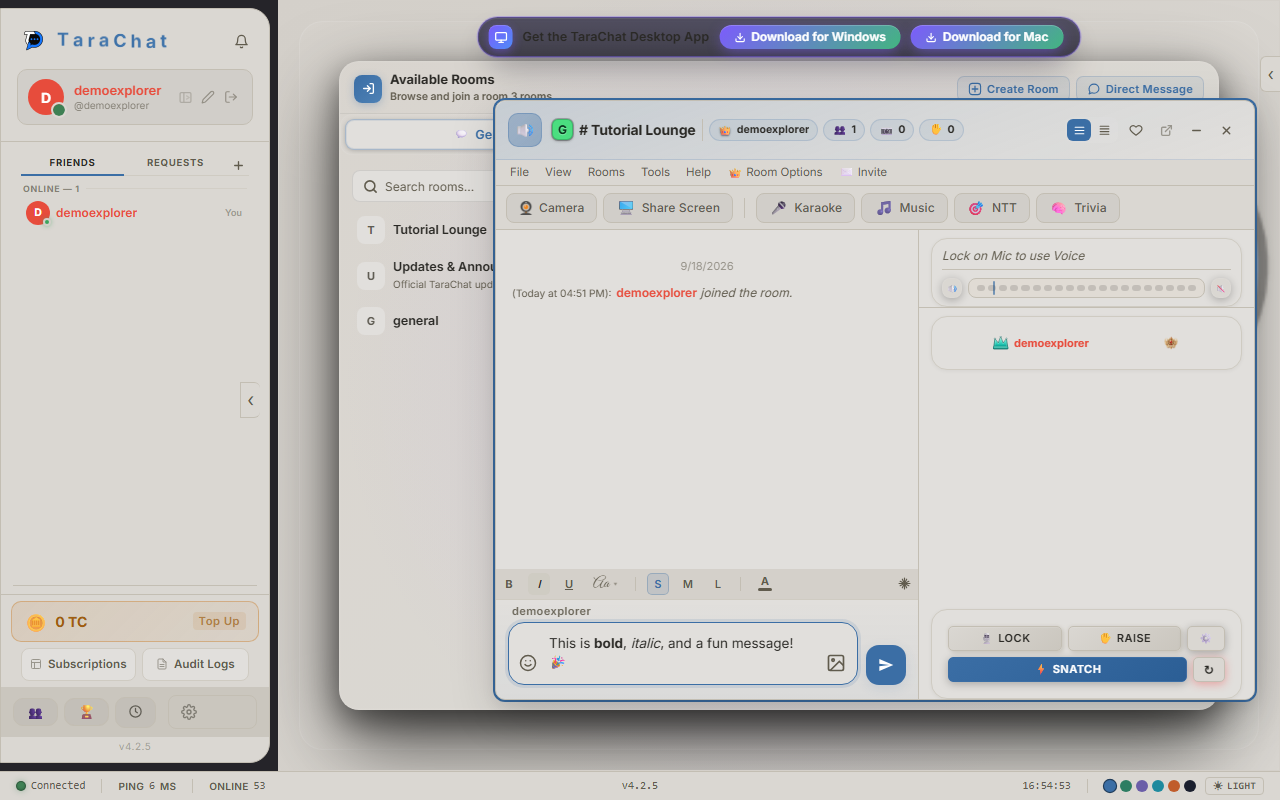
Like your style? Choose ☰ → Rooms → Set as Default Settings to use it in every room.
You can also type these and TaraChat styles the text for you:
| Type this | What happens |
|---|---|
| **bold** | Makes the text bold |
| *italic* | Makes the text italic |
| ~~strike~~ | Puts a line through the text |
| `code` | Shows text in a monospace font, like computer code |
| > quote | Turns the line into a quote |
| # Heading | Makes a big, bold heading |
| - item | Makes a bullet-point list |
| ||spoiler|| | Hides the text until someone clicks it |
| @username | Mentions someone, and they get notified |
A "slash command" starts with / and does something special instead of sending plain text. Type it in the message box and press Enter.
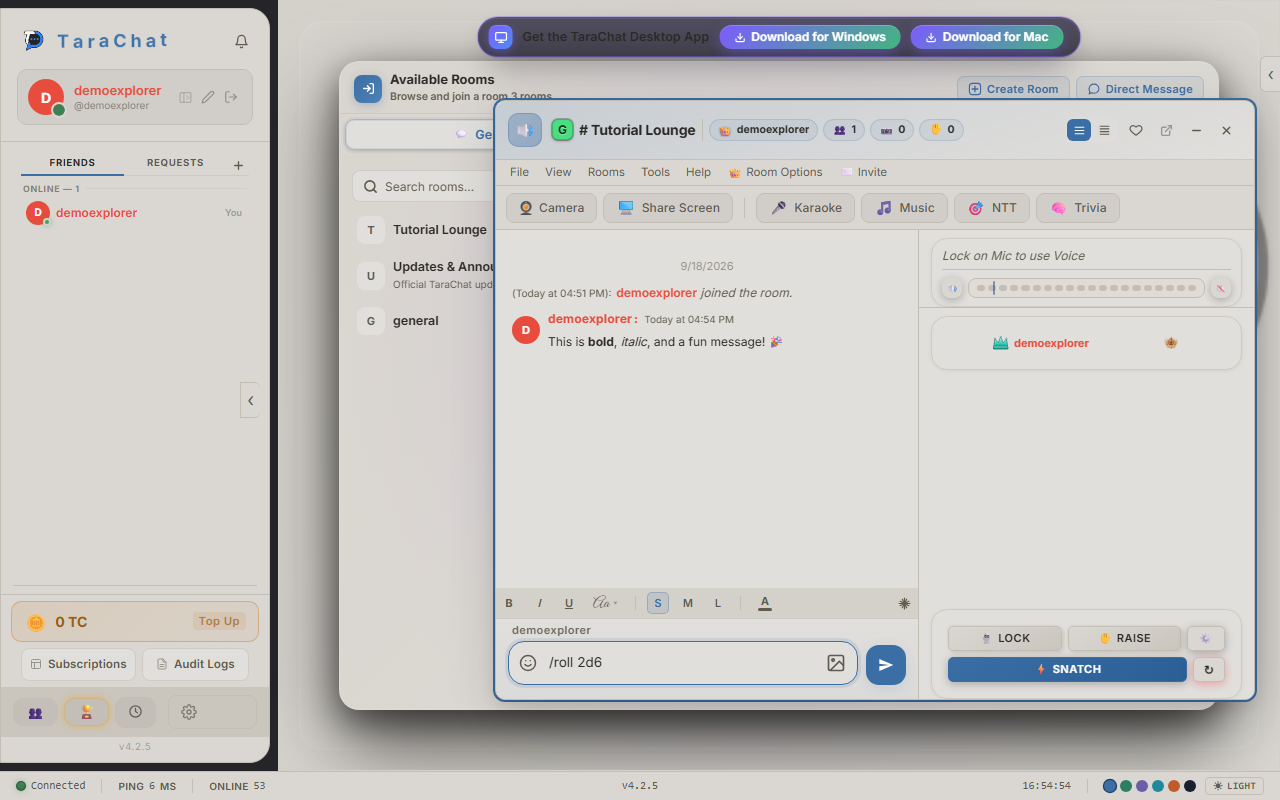
/roll 2d6 rolls two 6-sided dice for everyone to see.| Command | What it does |
|---|---|
| /help | Lists every command in the chat |
| /me waves | Posts an action line: "YourName waves" |
| /nick NewName | Changes your display name |
| /spoiler surprise! | Sends a hidden message people click to reveal |
| /gif cat | Searches for a "cat" GIF and posts it |
| /roll 2d6 | Rolls dice, here two 6-sided dice |
| /flip | Flips a coin |
| /hug name | Sends someone a hug |
| /wave | Waves to the room |
| /shrug | Posts ¯\_(ツ)_/¯. Also try /tableflip, /unflip, /lenny, /disapprove |
| /brb, /afk, /bbs | Posts a note and marks you as Away |
| /tts hello | Reads the text aloud to the room (moderators only) |
| /clear | Clears the chat from your own screen only |
Move your mouse over any message and a small row of icons appears above it:
- 😀 React: add an emoji reaction to the message.
- 📋 Copy: copies the message text.
- ↩️ Reply: replies to that message. A "Replying to…" bar shows above the box; click ✕ or press Esc to cancel.
- 📌 Pin: saves it to the room's Pinned Messages so it's easy to find later.
- ✏️ Edit and 🗑️ Delete: on your own messages only.
Click 😀 in the message box to open the emoji picker. Emoji are grouped (Smileys, Animals, Food…) and there's a search box at the top.
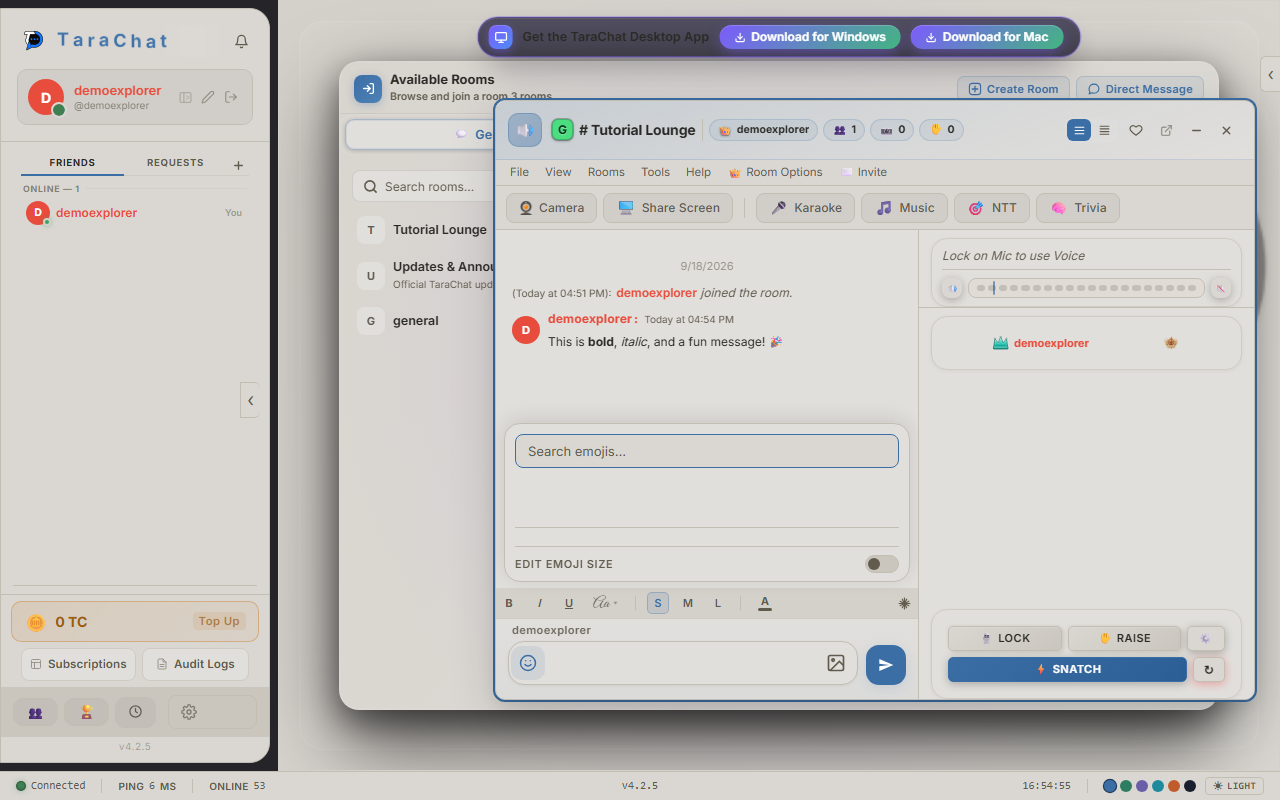
Faster way: type a colon and a name, like :smile. A list of matches pops up. Use ↑ ↓ to choose and Enter or Tab to insert.
Gifts
To thank whoever is on the mic, click 🎁 next to their name in the On-Mic card and pick a gift. Gifts are paid with TC Coins (Step 28). You can also buy name colours, crowns and badges for yourself or a friend (Step 29).
Every room has people with different levels of control, shown with a small badge next to their name:
The Kapitan and moderators can set the topic, pass or take the mic, remove people from the mic or the room, and open 👑 Room Options. The Kapitan can also change the room's type, colour, Greeter and other settings.
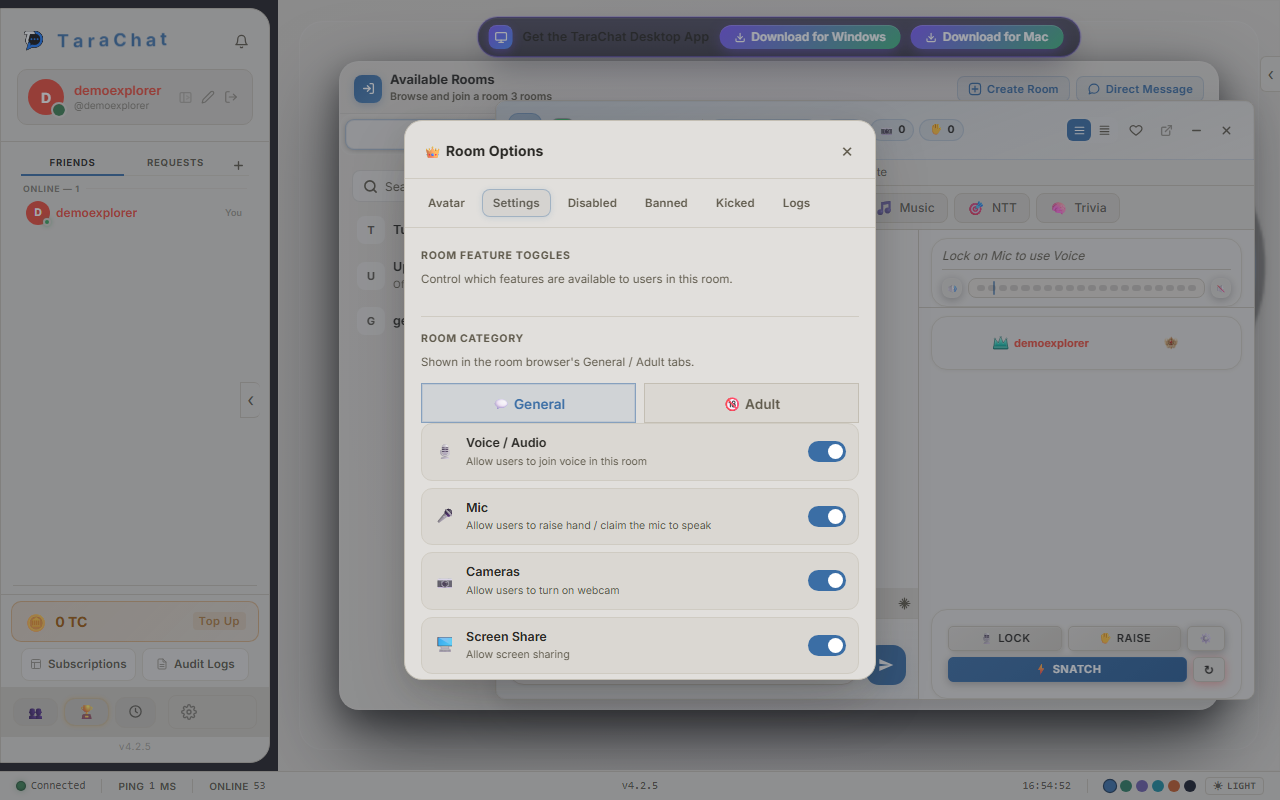
Click 👑 on the rail to open Room Options. It has these tabs:
| Tab | What it's for |
|---|---|
| Avatar | Upload a picture for the room. It shows at the top of the rail. |
| Settings | Room type and feature switches (below). |
| Disabled | People whose chat, mic or camera has been turned off in this room, with who did it and why. Click Re-enable to give it back. |
| Banned | People banned from the room, with the reason. Click Unban to let someone back in. |
| Kicked | People who were recently removed from the room. |
| Logs | A history of everything that's changed in the room. See Step 22. |
Room Type
The Kapitan (and admins) can switch the room between 🔒 Private, General and 18+ at any time. Switching to 18+ shows the 18+ rules first. Everyone in the room sees the new type straight away. (This is only for main rooms, not sub-rooms.)
Room Feature Toggles
Flip a switch to allow or block a feature for everyone in the room, then click Save Settings:
Other owner tools
- Set Room Topic: ☰ → Rooms → Set Room Topic.
- Greeter: ☰ → Tools → 🎉 Greeter. Write a welcome message (with colours, bold and an optional picture) that greets people when they join.
- Room colour: ✨ Services → Room. Paints the room, including the rail, in your chosen colour.
The Logs tab in Room Options records who did what in the room, newest first. Each entry shows who did it, what they did, who it affected and when, plus a detail line where it helps. For example:
- Settings, topic, Greeter and room type changes, with the old and new values.
- Pinned messages, with a preview of the message.
- Moderation: kicks, bans, mic removals, and "mute all" on the mic, with the reason if one was given.
- Invite codes, visibility, room expiry, voice limits, avatar changes and sub-rooms.
- Gifts sent in the room.
Each entry has an icon: 🛡️ moderation, ⚙️ room settings, 💬 messages, 🎁 gifts, 🚩 reports. Scroll down and click Load more to see older entries.
On a phone the Stage room is arranged to fit a small screen. Everything is still there, just in different places:
- Menu strip (File, View, Rooms, Tools, Help) along the top, instead of the ☰ button.
- Icon row in the room's colour, with the same tools as the desktop rail: camera, screen, karaoke, music, games and Room Options.
- 👥 People tab: tap it to slide out the People panel with Find someone. Tap outside it to close.
- Topic with More / Less, just like on desktop.
- On-Mic card with the mic buttons, right above the chat so you never have to open a drawer to take the mic.
- Message box with the T formatting button.
Instead of right-clicking, press and hold a name or a room to get its menu.
Click the + next to "Friends" in your sidebar, type someone's username and click Add. This sends them a friend request. (You can also right-click their name in a room and choose Add Friend.)
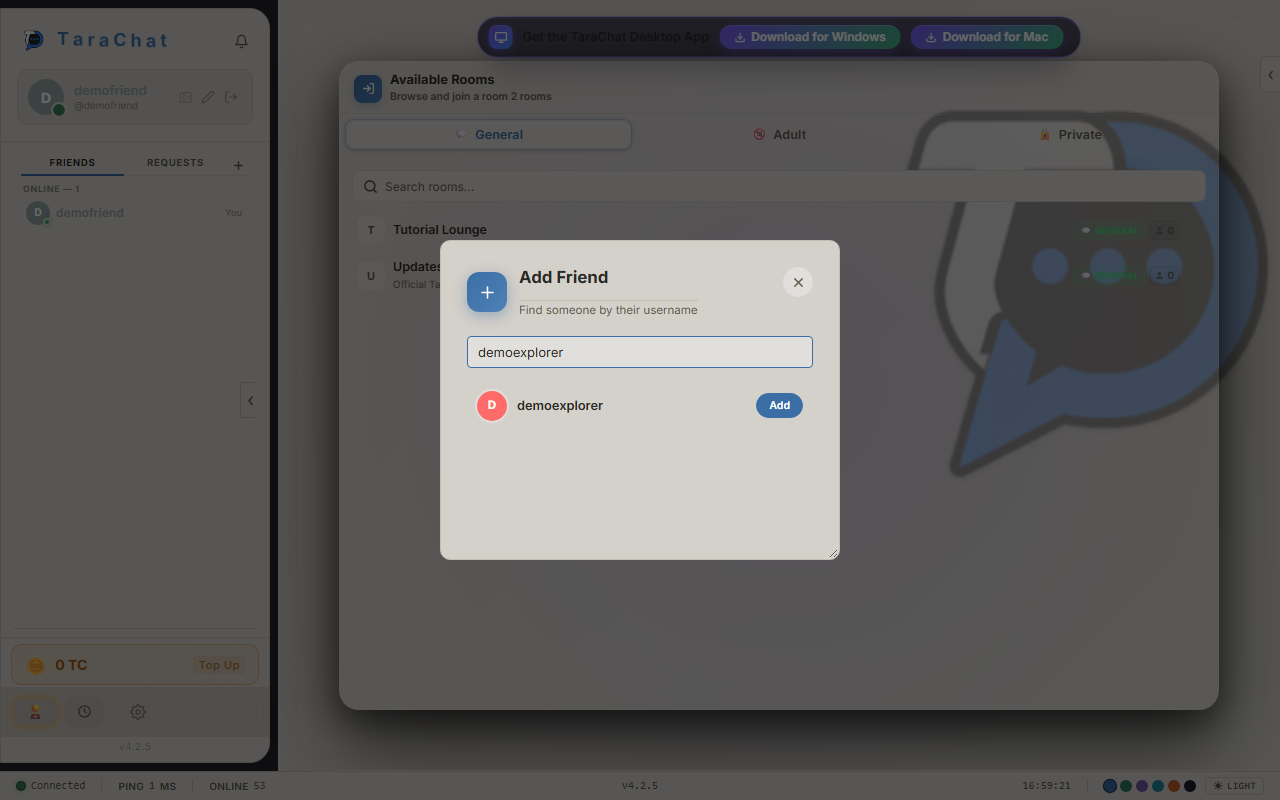
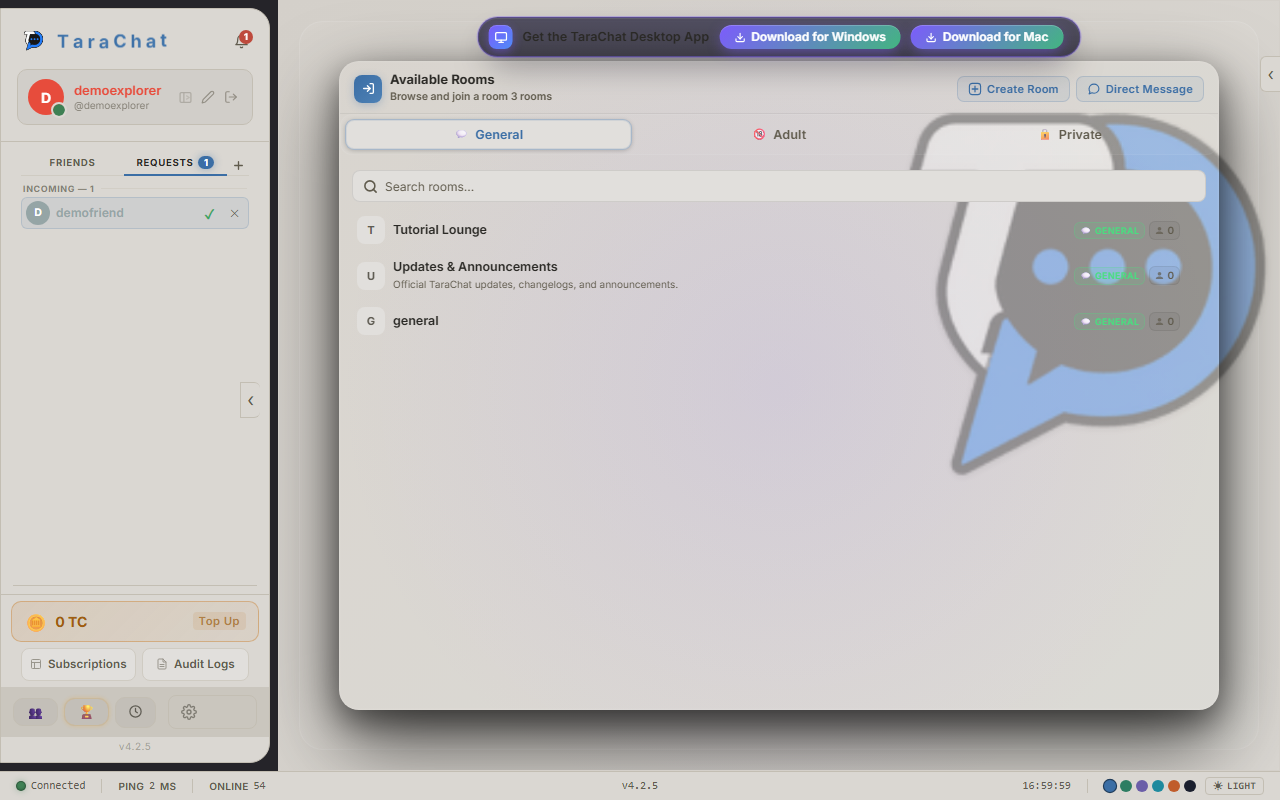
They'll see the request under their Requests tab, with a green checkmark to accept or a red X to decline.
Once you're friends, click their name in your Friends list to open a private chat (a "DM", short for direct message).
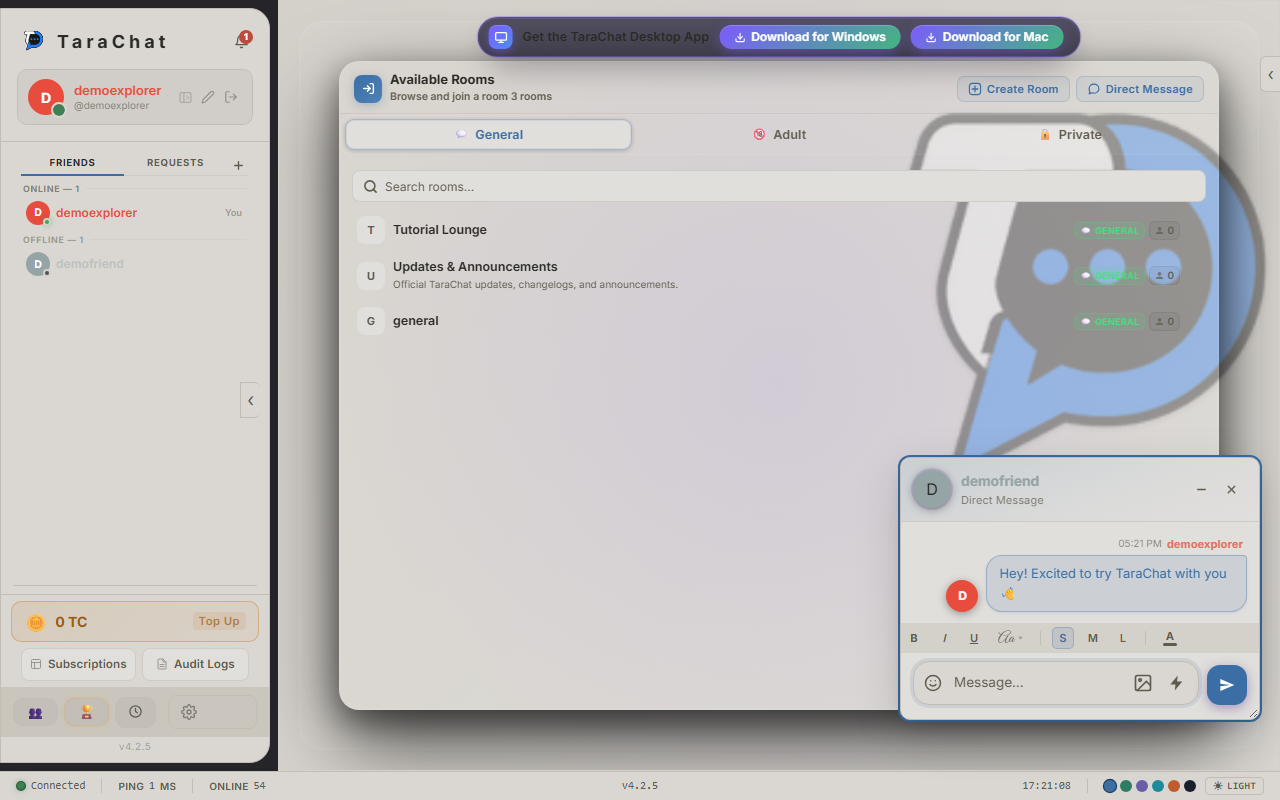
Minimized DMs sit as small bubbles; a bubble glows and bounces when a new message arrives.
Your private messages use end-to-end encryption. In plain terms: your messages are scrambled so only you and the person you're chatting with can read them. Not even TaraChat's servers can see the words.
The first time you open a DM on a device, you may see a "Password Required" screen. It's asking for your password once more to unlock this extra layer of security on that device.
If a message shows "🔒 Encrypted — unable to decrypt" instead of real text, this device's security key doesn't match. Tap it to try fixing it automatically.
Click your profile picture to set your status, so friends know what you're up to:
- Online: you're around and available.
- Away: you've stepped away for a bit.
- Do Not Disturb: you're busy; notifications are quieter.
- Invisible: you appear offline to everyone.
Shortcut: typing /brb, /afk or /bbs in a message box posts a short note and sets you to Away.
Click the ⚙️ gear icon in the bottom-left to open Settings. Here's what each section does:
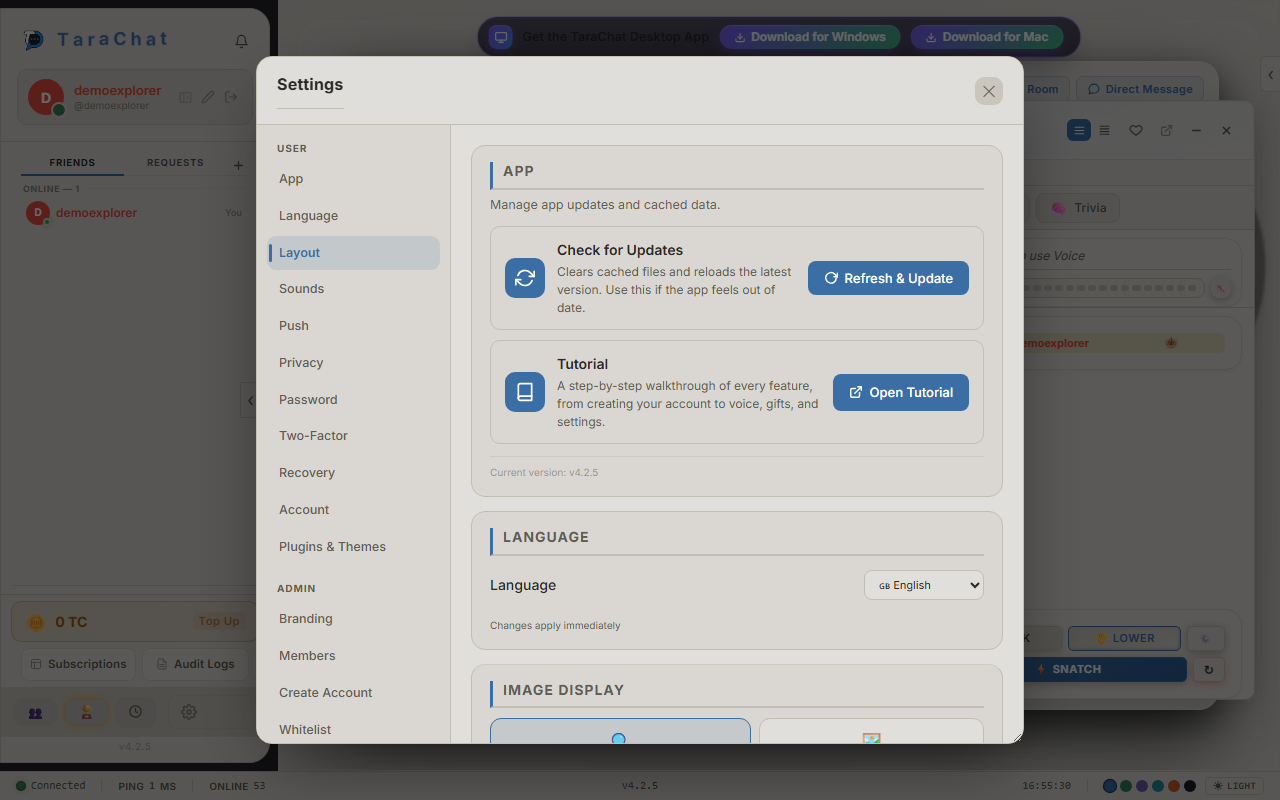
On the desktop app you'll also see Desktop Shortcuts and Desktop App sections.
TC Coins are TaraChat's currency for gifts, crowns and other extras. Click the coin balance in your sidebar to open your wallet, then Top Up.
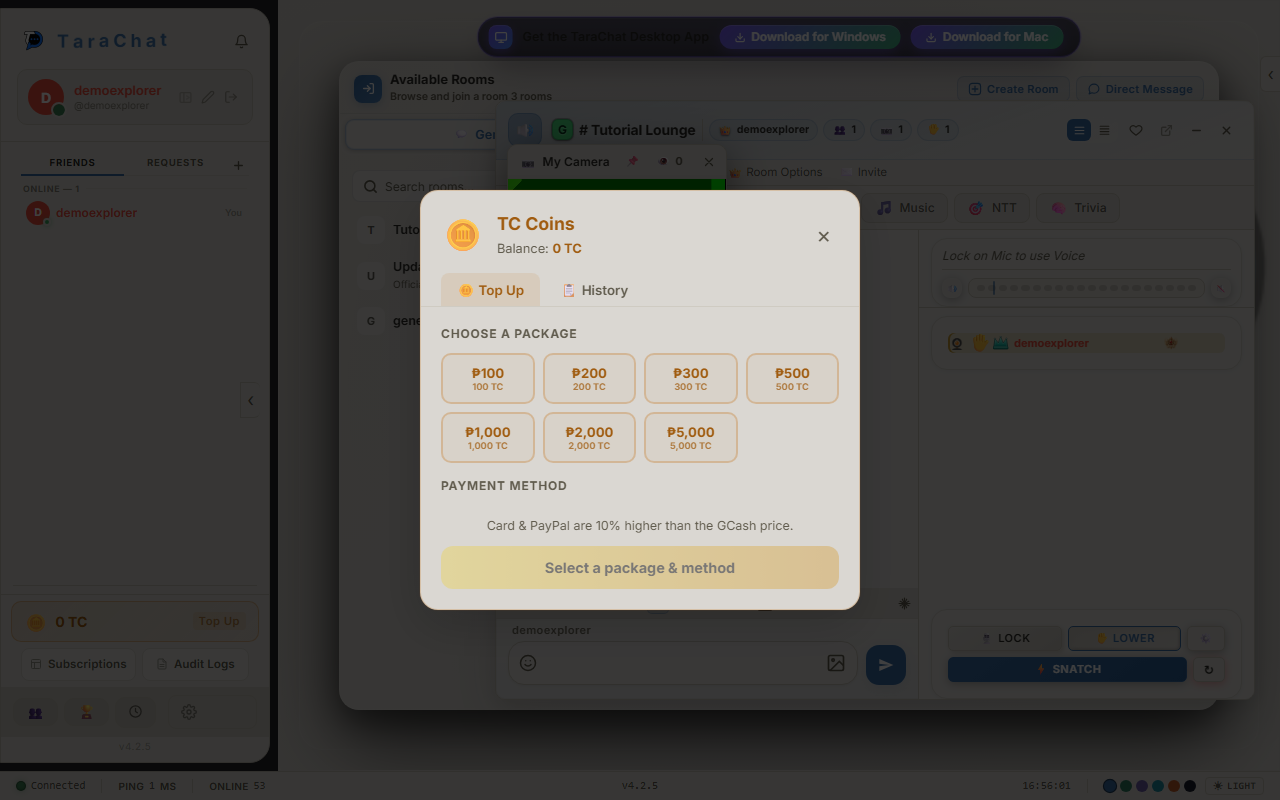
Pick a package, choose a payment method (like GCash, card or PayPal), and finish paying in the pop-up. Your balance updates by itself once the payment is confirmed. There's no need to refresh.
Click ✨ Services on the room's rail to spend TC Coins on extras. There are tabs for each kind:
Choose how long you want it for, from 1 month to a full year. Longer periods cost less per month.
You don't have to install anything; the website works on its own. The desktop app is handy if you want TaraChat always ready in your taskbar or dock.
Windows: download the installer, double-click it, and follow the prompts. After that it updates itself, so you won't need to reinstall it.
Mac: download the DMG file, then drag the TaraChat icon into your Applications folder.
- macOS might say the app "is damaged and can't be opened." It isn't really damaged; the app just hasn't been verified by Apple yet. Right-click the app and choose Open instead of double-clicking.
- If you open TaraChat straight from the downloaded file instead of Applications, it will ask you to move it to Applications first so it can update itself.
Everything above works the same on the desktop app, including the Stage room. The main differences:
- Each room and DM opens in its own separate window, so you can drag a room to a second monitor or keep several open side by side.
- When you hold the mic, the LOCK button reads RELEASE; click it to give the mic back.
- In the room list, right-click a room for Join Room, or just double-click it.
- The app sits in your system tray (next to the clock) and updates itself in the background.
Press the ? button on the rail any time to see these inside the app.
| Keys | What they do |
|---|---|
| Enter | Send message |
| Shift + Enter | New line |
| Esc | Close the emoji list, or cancel a reply or whisper |
| : name | Start an emoji search, e.g. :smile; then ↑ ↓ and Enter / Tab |
| Ctrl + K | Quick room switcher |
| Ctrl + F | Search messages in the open room |
| Ctrl + Shift + T | Show or hide message timestamps |
| Alt + ↑ / ↓ | Previous / next room |
| Alt + Shift + ↑ / ↓ | Previous / next room with unread messages |
| Problem | Try this |
|---|---|
| I can't hear anyone | Click ↻ Refresh Voice. Check the 🔊 volume slider and that you haven't pressed 🔇. Make sure your computer's sound isn't muted. |
| People can't hear me | Check you actually have the mic (the button says Release Mic / RELEASE). Open ⚙️ Voice Settings and pick the right microphone. Make sure the browser is allowed to use your mic. |
| LOCK is greyed out | Someone else has the mic (MIC USED), SNATCH is on (SNATCHING), or the owner has turned the mic off for this room. |
| A rail button is greyed out | The room owner has switched that feature off in Room Options. |
| I can't type in the room | Text chat is off in this room, or a moderator has restricted you. |
| I can't open any room | Your status is set to Invisible. Switch to Online. |
| Something looks broken | ☰ → Help → 🚩 Report Issue to tell us. Settings → App → clear cache can also help. |
This guide gets updated as new things ship. If something looks a little different from what's shown here, a new feature has probably just landed.